

Learn About Building and Deploying Applications
This section is a list of how-to articles targeted to developer activity. For content administrator help, please see our wiki. For customer support, please email support@contensive.com.
Local File Mode vs Remote File Mode Configurations
Contensive can be configured to store file content either locally on the web-server or on Amazon AWS S3 (a remote file store). This article defines the terms involved, describes how each works, the advantages of each, and now to convert from one to the other. Online Application vs Website A website is typically delivered from one or more web-servers and may include either or both static resources like html, and dynamic resources like PHP code. An online application is similar to website but may...
Start Here for How to Create an AWS Server for Contensive
This article will guide you through creating a new Amazon EC2 instance to be used as a Web Server. You will also be shown how to create an AMI from the EC2 instance that will enable you to quickly make other new instances. Launch a Basic Small Windows Server Log into or create an Amazon AWS account. Search for EC2 in the "Find Services" search bar. Click the "Launch Instance" button. Search for "Windows Server 2019". Select the Windows Basic 2019. Instance type - Select t3.medium for your instan...
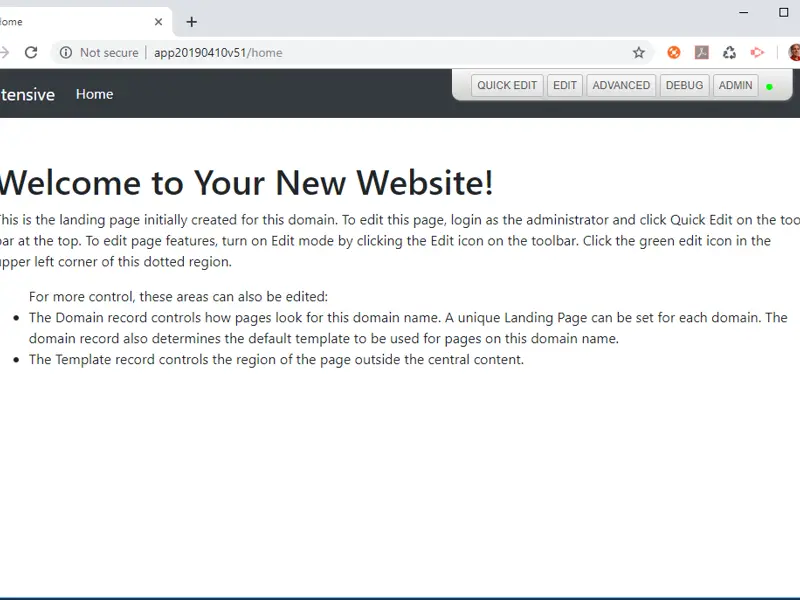
How to Configure the New Server and Add a Web Application
This article will guide you through using the Contensive configuration tool to configure your web server to utilize a web application that you will also create. The required server environment is a Windows server (or laptop) with an IIS Web Server and SQL Server Express installed. Create an AWS EC2 server instance with Windows Server 2019+ and IIS Web Server. For details see the following article: How to Create an Amazon Windows 2019 Server for Contensive Download and install the Configuratio...
How to Create an Add-on and Add Visual Studio C# Code
You add code to Add-ons that populate your application. An Add-on is a record that manages the features of an application's functionality. For example, an add-on may include a call to .NET code in a .NET assembly installed on the server. NOTE: These instructions assume you have built a demo site to run your add-on. How to create an endpoint Add-on that returns "Hello world!" when hit from the browser: Log into the administration website (Located at http://{yourAppName}/admin by default). Loc...